SpektraLab 1.3.3 requires Apple silicon (an M-series Mac) and macOS 15 or later. This guide covers the native macOS app. The arm64 download does not run on Intel Macs.
1.3.3 is the first release signed with a Developer ID and notarised by Apple. Follow the normal macOS first-open prompt. The quarantine-removal command in the old guide is no longer required.
If macOS still refuses to open it, confirm you downloaded the official 1.3.3 DMG, download it again, and replace the old app. For a persistent problem, report the complete message and your macOS version on GitHub Issues.
Settings → General → Check for Updates checks public GitHub release information; it does not install updates. Quit SpektraLab, download the new DMG, and replace the app in Applications.
Your photo edits live separately in Application Support and survive replacement of the app.
Start with a familiar camera RAW. Leave advanced controls alone until you have made one complete print. The guide is available in English and Chinese; the language switch keeps your place. Older interface images are labelled with their capture version.
Click Import in the top toolbar, or press ⌘ O. Your photo appears on the canvas and in the filmstrip. For externally developed TIFFs, read file preparation first.
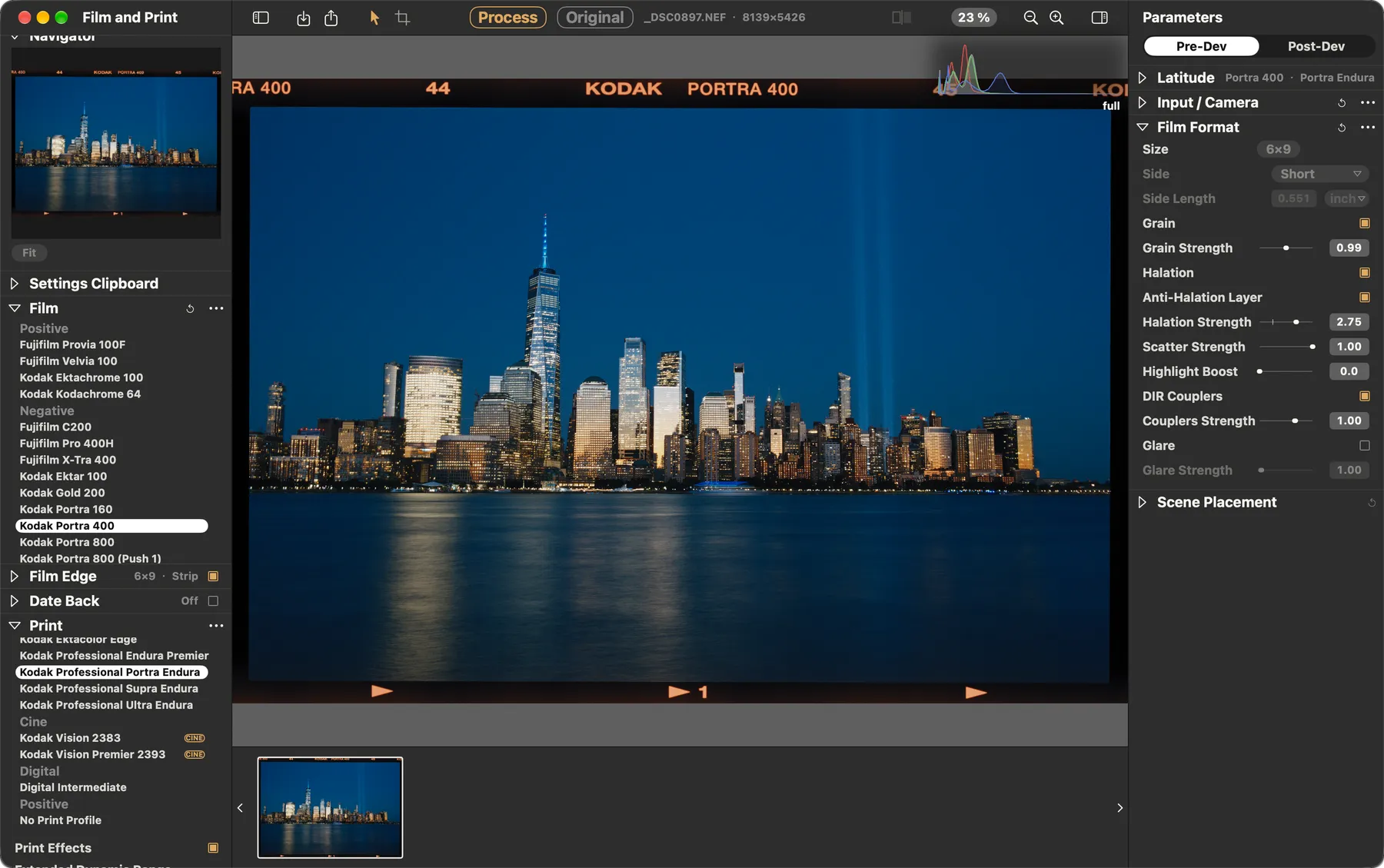
On the left, choose Kodak Portra 400 and Kodak Professional Portra Endura. This is a consistent practice pairing, rather than a recommendation for every photograph. Keep the paper fixed while comparing films.
Click Process in the toolbar (配光 in Chinese). It meters the scene and solves the enlarger filter pack for the current paper. Wait for the print to update.
A starting point for your print
Process resets manual Yellow / Magenta offsets. Process first, then add any manual filtration.
Choose Post-Dev on the right. Make small exposure, white balance or curve adjustments, one at a time. Hold Space to see the original decode; release to return to the print. Press Y for the comparison view.
To judge grain, use 100% zoom and wait for the full badge.
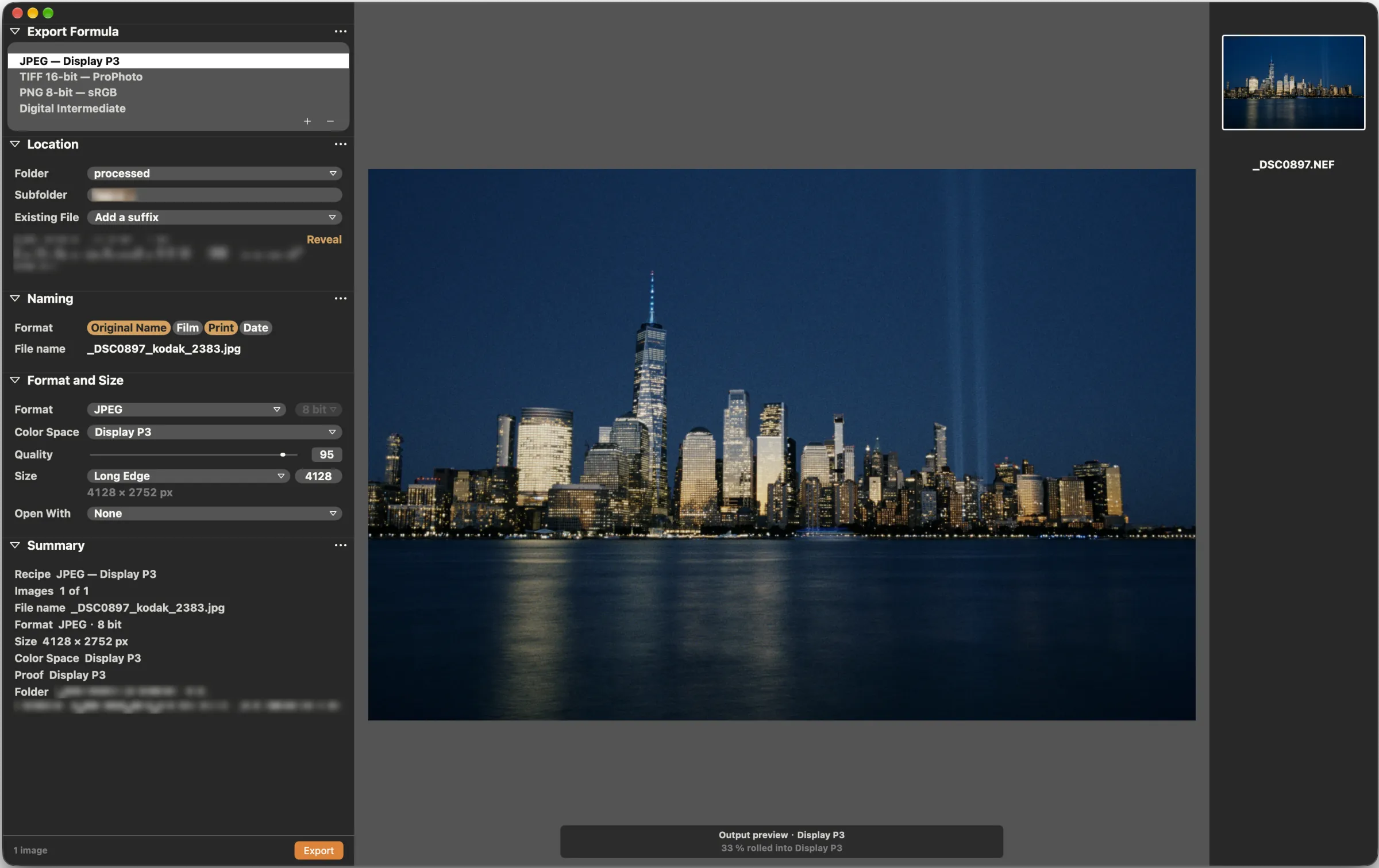
Press ⌘ E. For everyday sharing, choose JPEG and set Color Space to sRGB. For further editing, use TIFF 16-bit — ProPhoto. Check the photo, folder, name and soft proof, then export.
Left: Navigator, Settings Clipboard, Film, Film Edge, Date Back, Print, Crop and Enlarger. A pair adds Half-Frame Pair. Centre: the canvas and filmstrip. Right: Latitude, Pre-Dev and Post-Dev.
Use Pre-Dev to change what reaches the film: camera white balance, film exposure, format and Scene Placement. Use Post-Dev to finish an already developed print: exposure, curves, colour balance and white balance.
For a first photo, choose your materials, Process, and finish in Post-Dev. Come back to Latitude when the scene needs more help.
During edits the app renders an interactive preview, marked preview. After you stop, the original-resolution render arrives and the badge becomes full.
full describes render resolution, not zoom. Check both the full badge and 100% zoom when inspecting texture.
A TIFF with an existing contrast curve or look already contains processing that will carry into the film simulation. When decoding elsewhere, start with a linear, minimally processed export and keep its colour profile correct.
Different RAW developers interpret camera data differently; even careful exports can give different film results.
Edits are stored separately in SpektraLab’s Application Support folder. Export writes a new image; it does not overwrite the original RAW. Keep the source file as well as your edit records and exports.
Try Kodak Portra 400 + Kodak Professional Portra Endura. Change one material at a time so you can tell where a difference comes from. For monochrome materials, see Black and white.
Process meters the scene and solves the filter pack for the current paper. After changing materials, use it for a fresh comparison starting point. It also clears manual Yellow / Magenta offsets.
The Print list includes photographic papers, cinema materials, Digital Intermediate and No Print Profile. The CINE badge identifies cinema materials. Vision 2383 is a cinema print film with a different response from photographic paper.
Illustrations show their own material choices; they are not samples of every pairing in this tutorial.
Enlarger Brightness changes print exposure. Yellow / Magenta adjust filtration relative to the Process solution. Open these when you want to change the printing stage. For a small brightness correction to a finished print, start with Post-Dev Exposure.
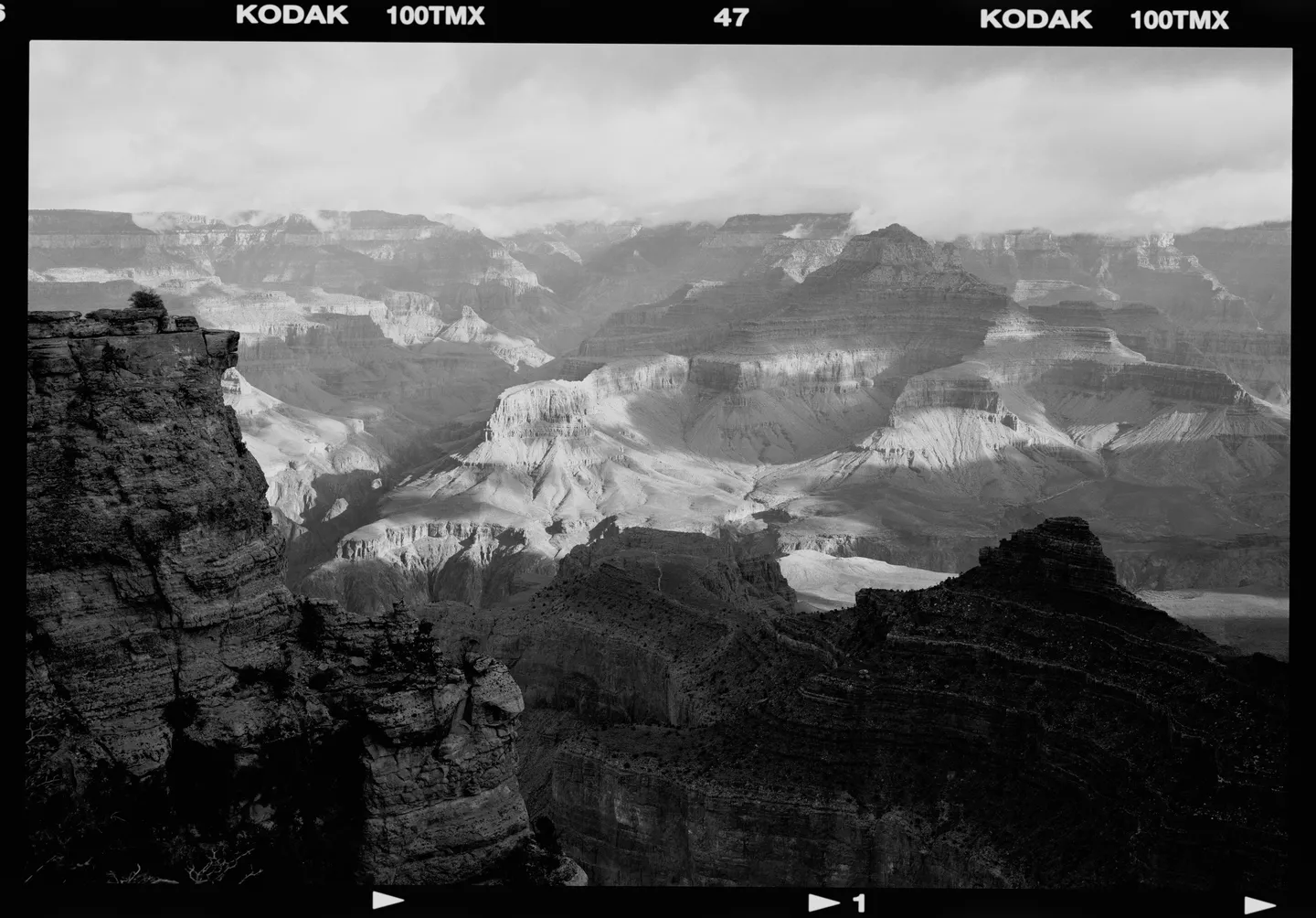
In Film, open the black-and-white group and choose Kodak Tri-X 400, Kodak T-Max 100, Fujifilm Neopan 100 Acros II or Ilford HP5 Plus 400. The app selects Ilford Multigrade IV RC with it. Incompatible colour papers are greyed out with an explanation.
Click Process, compare the print, then make small Post-Dev adjustments. Switching between colour and monochrome requires a compatible film/paper pairing; this is not a desaturation switch.
At Grain Strength 1, each black-and-white film uses its maker’s published granularity as its reference. Tri-X looks coarser than Acros II. Compare at 100% after full appears, keeping format and framing the same.
The current grain range saturates for Tri-X at about 1.18, so pushing above that does not keep increasing its grain. Colour films still share one grain model.
The monochrome print uses Multigrade filter 2. Lens-filter and paper-grade controls are not available in the interface yet. EDR is unavailable on the black-and-white paper. Each film has its own edge print, including HP5 Plus’s 135 layout.
If you like the film response and just want a brighter or darker picture, use Post-Dev Exposure. Pre-Dev film exposure changes the light reaching the film and its response; the two controls serve different stages.
Camera Temperature / Tint: RAW decoding. Enlarger Yellow / Magenta: printing through the selected materials. Post-Dev White Balance: the developed image. Start with the stage that owns the problem, and adjust one at a time.
Use Post-Dev curves to refine contrast, and colour balance to shape the finished image. Keep changes small while learning and compare the whole photo as well as the detail.
Hold Space on the canvas for the original, release for the print; press Y to toggle comparison. The original is the current decode, not the camera’s embedded JPEG. Use ⌘ Z to undo.
Settings Clipboard sits below Navigator. Choose from Film & Paper, Exposure, White Balance, Film Effects, Paper Effects and Scene Placement. Click Copy or press ⇧ ⌘ C. The selection of groups is captured when you copy; copy again if you change it.
Select the destination photos in the filmstrip while keeping the intended source current. ⌘ A selects all photos. Check the current photo, the checked clipboard groups and the count on Sync to N, then click Sync. The current photo supplies settings to the other selected photos.
Sync needs at least one other selected photo and a checked group. Drag filmstrip thumbnails to reorder them.
Transfer copies settings, rather than the source’s measured exposure or Scene Placement fit. Destinations are metered and fitted from their own scene content.
Crop, framing, lens correction and Post-Dev grading are outside these groups. Exposure refers to metering mode, film exposure and enlarger brightness; it does not mean every exposure-like adjustment in the app.
Export Formula selects or creates a recipe. Location sets Folder, Subfolder and existing-file behaviour. Naming combines Original Name, Film, Print and Date and shows the resulting name.
Check Format and Size, including bit depth, Color Space, Quality and Size. Open With chooses an app for the output. Inspect Summary and the central soft proof before pressing Export.
Select your photos before starting. Export processes one frame at a time; the active frame and selection are locked during the run. Stop takes effect between frames: a file already being written finishes first.
DI creates a Cineon log intermediate and a viewing LUT for later grading. The log image looks flat without the corresponding viewing transform. For a finished photograph to share, choose JPEG or TIFF.
Open Film Edge on the left and turn on its header switch. Choose Format, then reframe the photo in its gate. With Film Edge enabled, the format determines both the gate and the scale of the film effects; the separate Film Format control explains that it is set by Film Edge.
Compare Strip and Filed views. Gate changes the opening’s shape; Holes chooses white or black perforations where the format has them. Body and Advance vary the camera and frame characteristics. Frame no. lets you specify the printed frame number; Auto leaves it to the frame’s stored variation.
Fog and Leaks add edge light. Start gently and judge the full print. Edge lettering follows the selected stock.
With Film Edge on, the crop defines the picture exposed inside the film gate. It is part of the negative, so reframing re-develops the image. The exported image includes the film canvas you see. Check the framing again when changing format.
Open Date Back on the left and enable its header. Choose an available face, inspect the date read from EXIF, and choose its order. If the source has no EXIF date, the panel says so; check the printed preview rather than assuming a date was found.
On 135 and half frame, the date can appear in the picture. A date alone can work with Film Edge off. On 120, the date prints in the film margin and therefore needs Film Edge. XPan, 6×12 and 6×17 do not support Date Back. Unavailable choices explain why.
Enable Shooting data to add the data line alongside a date. Data needs Film Edge because it prints beside the frame, rather than over the picture. Inspect the resolved data before exporting; available content depends on the photo’s metadata.
Choose placement where offered, then adjust Size and Brightness. The date is exposed before development and follows the camera orientation and framing. It is part of the rendered photograph, so check it again after a turn, flip or crop.
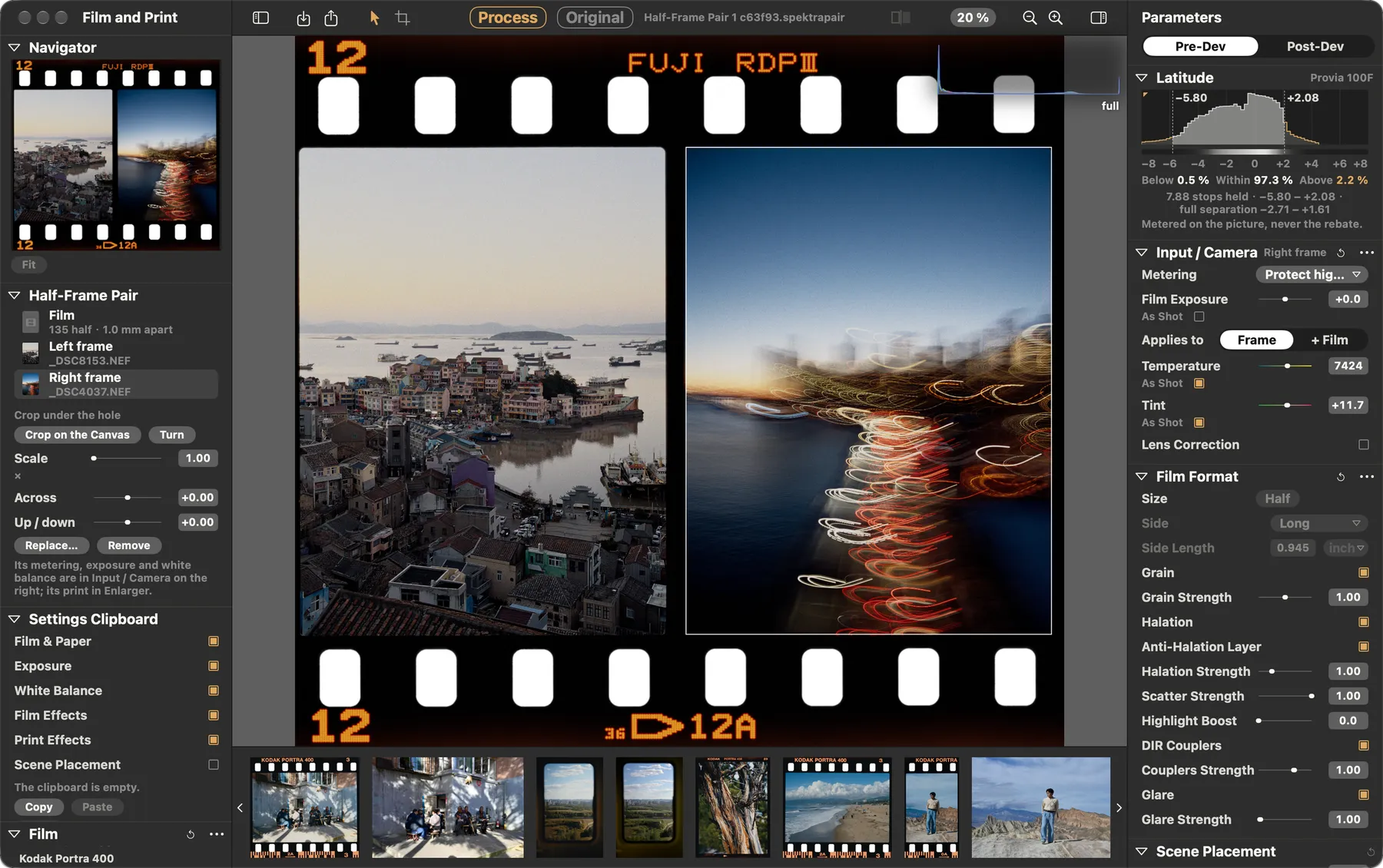
With photos open, select one or two in the filmstrip and press ⌘ J (New Half-Frame Pair). The first two selected photos fill the holes in filmstrip order. Or choose Film Edge → Half → Enter Half-Frame Pair, then click the + on the empty hole to add the second photo.
Click an exposure on the canvas, or use Half-Frame Pair’s Film / Left frame / Right frame rows. When the camera is turned, the rows become Top frame / Bottom frame. Film controls the overall camera orientation, spacing and swapping; a picked frame exposes its own placement controls.
The right rail’s metering, exposure, decode white balance and Scene Placement refer to the picked frame. The frames can also retain separate print adjustments and dates. Check the active frame or scope before editing.
Right-click a frame to replace or crop it, or use Crop on the Canvas in the pair panel. Drag to position and scroll to scale; use Turn for a quarter turn, then Done. A filmstrip photo can also be dragged into a hole.
With Film Edge on, the camera’s advance sets the gap. Without it, use Spacing. Swap the Two Frames changes their order.
Fill both holes before exporting, then export the pair as one image. The pair is its own filmstrip item and references the source photos; it does not contain copies of them. Keep those sources available. Removing the pair does not delete its source photos.
Pre-Dev → Film Format sets the scale of physical effects; it is more than metadata. With the same photograph, a smaller simulated frame makes grain coarser relative to the picture. Film Edge sets the format while it is enabled.
Grain is the fine texture. Halation is the glow from light returning through the film; scatter is in-emulsion scattering, while glare belongs to the print stage. Compare a bright/dark boundary with each effect in turn, then check the whole photograph at a normal viewing size.
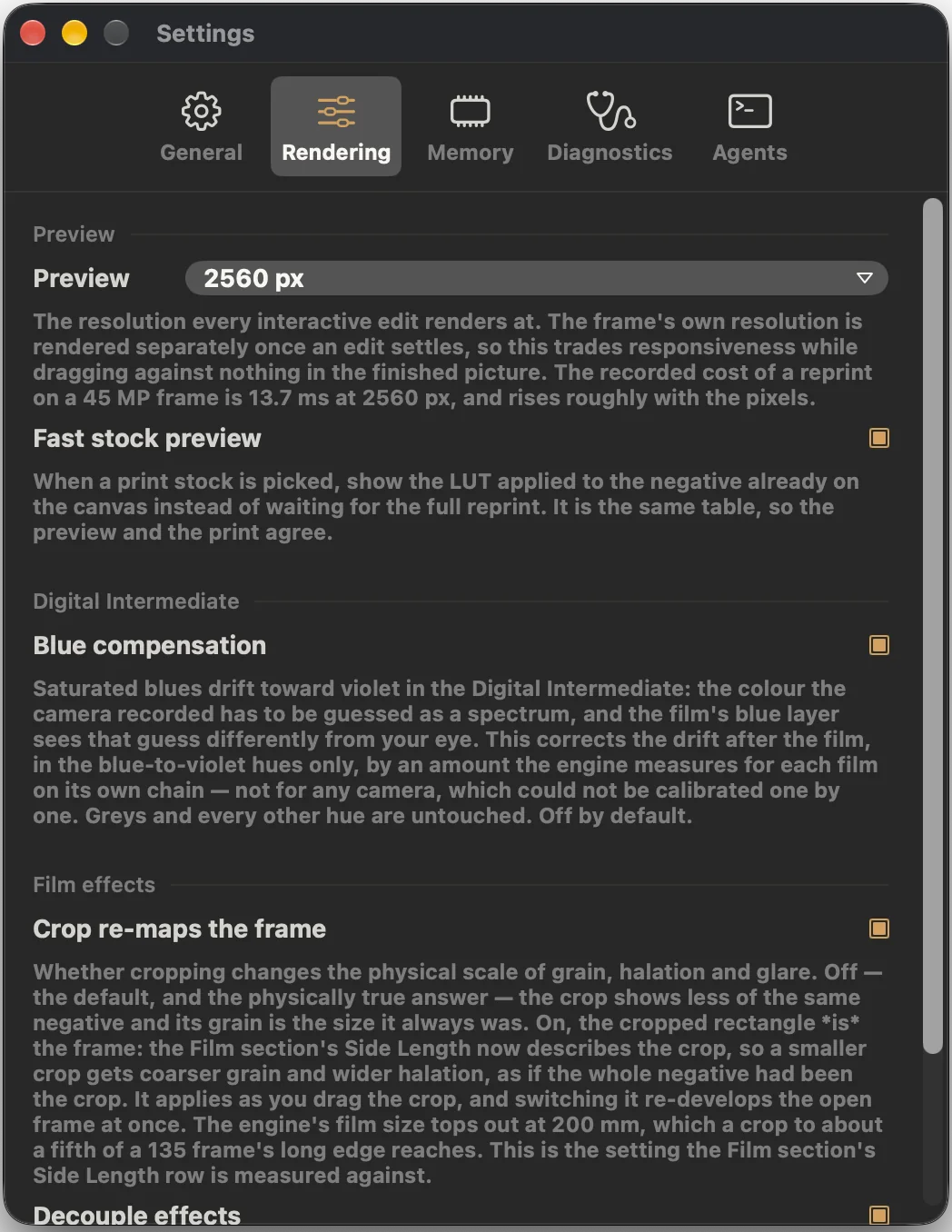
Enable Settings → Rendering → Decouple Effects to reveal separate strengths. Turning it off only hides the sliders; it does not reset your values. For black-and-white films, strength 1 uses each film’s own published granularity. Colour films still share one grain model.
Keep Anti-Halation Layer on for the film as profiled; turning it off simulates removing that layer. Highlight Boost raises the highlights used to generate halation, rather than acting as ordinary whole-image exposure. Start at the defaults and compare around bright lights.
Halation and glare strengths control halo area; they are not linear brightness multipliers.
Latitude shows a scene histogram, the film’s usable range, and fractions below, inside and above it. It reads the distribution after Scene Placement and explains when it cannot measure. Decide which highlights and shadows matter in your picture before chasing a number.
Scene Placement changes the highlight and shadow relationship reaching the film. The usable band on the slider shows the part its fit can use. Make small moves, allow the result to settle, and compare. Post-Dev Exposure works later and cannot replace scene placement.
Tone Mask and local masks are not offered in this release. Their appearance in an older screenshot does not mean they are available now. Scene Placement is a separate stage before film.
Extended Dynamic Range affects the output side, including canvas, soft proof and export. It cannot restore highlights already lost at input. EDR is unavailable on the black-and-white paper.
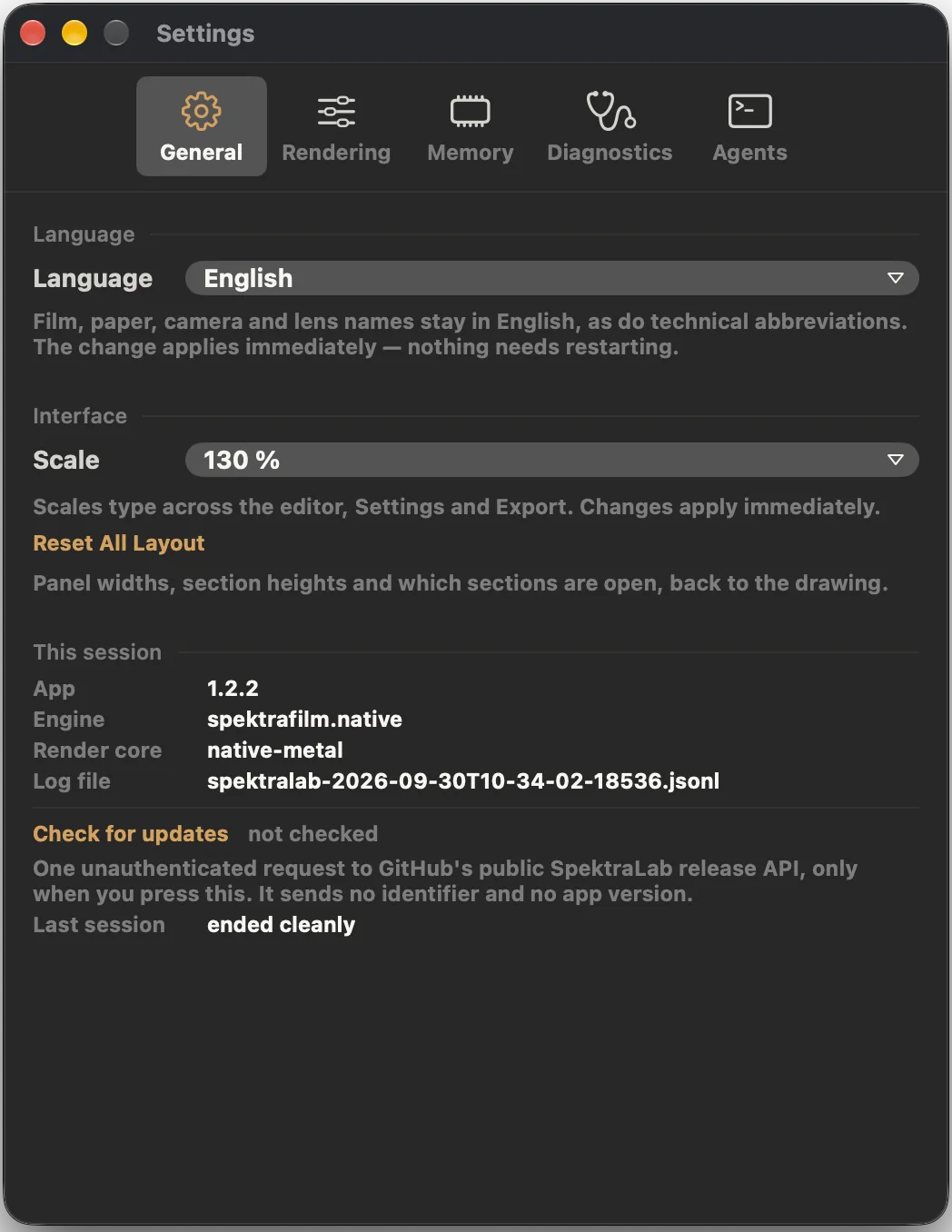
Choose System, English or Simplified Chinese. Changes apply immediately. Film, paper, camera and lens names and technical abbreviations remain English; the export page is currently English.
Increase scale for larger labels in the editor, Settings and export page. This does not change image pixels or export dimensions. The older captures use a personal 130% setting.
This Session lists app version, engine, render core and log file. Check these before reporting a problem. This guide covers 1.3.3 (build 18). Check for Updates only queries GitHub; see updating.
Choose a long edge of 1080, 1920, 2560 or 3840 px. Start at 2560 and lower it if interaction is slow. After editing stops, the app still renders at the photo’s own resolution. Export dimensions are set separately.
When comparing papers, this applies the paper’s lookup table to the existing negative for a quick first view, followed by the full print calculation. The underlying film simulation remains in use.
An optional DI-only control, off by default. Compare it if highly saturated blue shifts toward purple in a DI workflow. Ordinary JPEG / TIFF work does not need it.
Off by default: crop takes part of the same negative and keeps the physical effect scale. On: the crop becomes a new full frame; tighter crops make grain coarser and halation wider. Switching it re-develops the photo.
Shows separate grain, halation, scatter, DIR coupler and glare strengths. Turning this setting off hides controls while retaining their values. Restore values to 1 first if you want the model’s baseline.
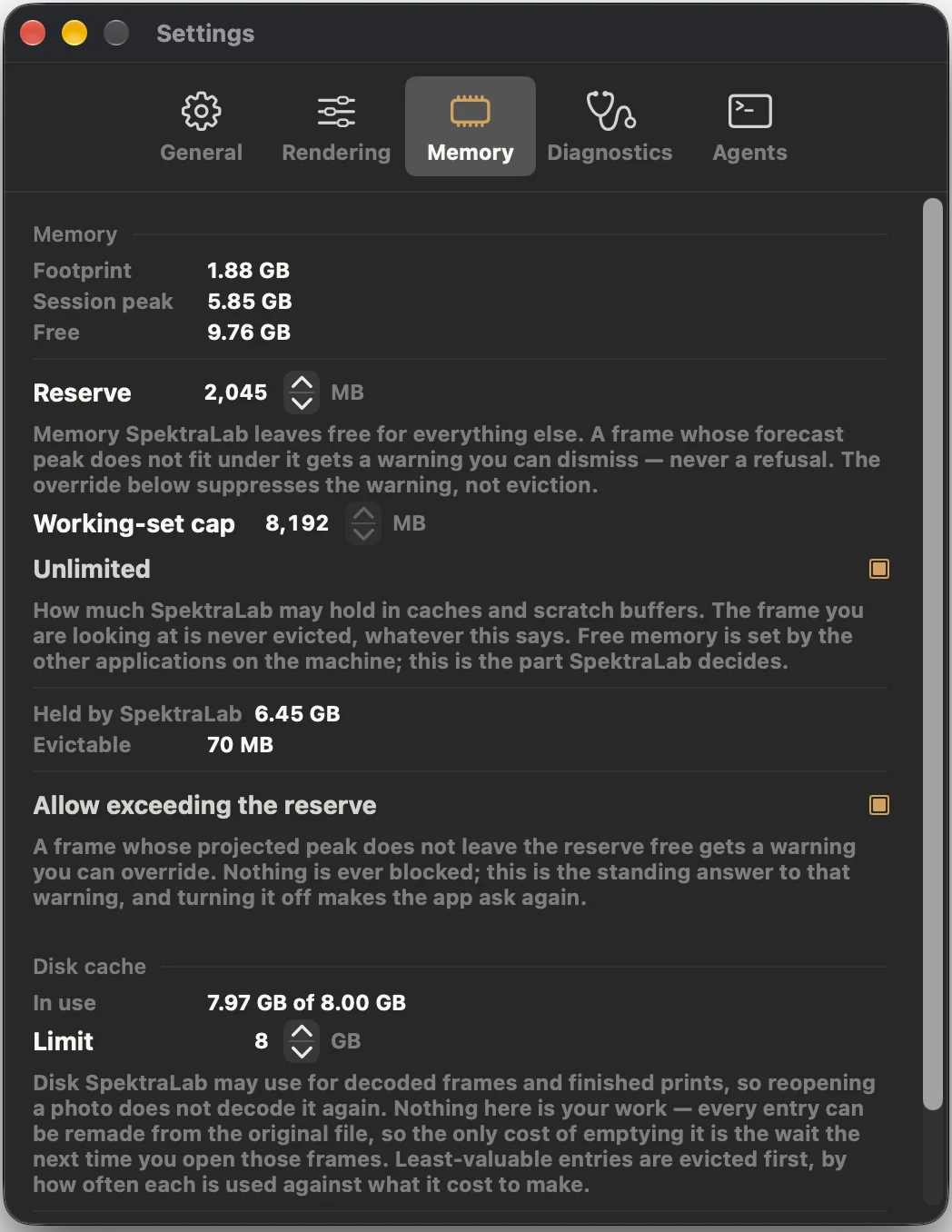
Footprint, session peak and available memory change during processing. SpektraLab-owned and reclaimable resources measure a different scope from the full process footprint.
Reserve expresses how much free memory you want to leave for other apps. If an estimated peak crosses it, the app asks rather than refusing the photo. Allow Exceeding Reserve answers those prompts persistently; it does not add physical memory.
Bounds retained caches and temporary buffers. The current photo stays pinned. This is not a hard limit on total process memory. Unlimited disables the numeric value. Keep the default while starting out.
Stores reproducible decodes and prints to speed up reopening. Reduce its size or clear it when disk space is tight. Originals and edit records remain; the next open recalculates the cached work.
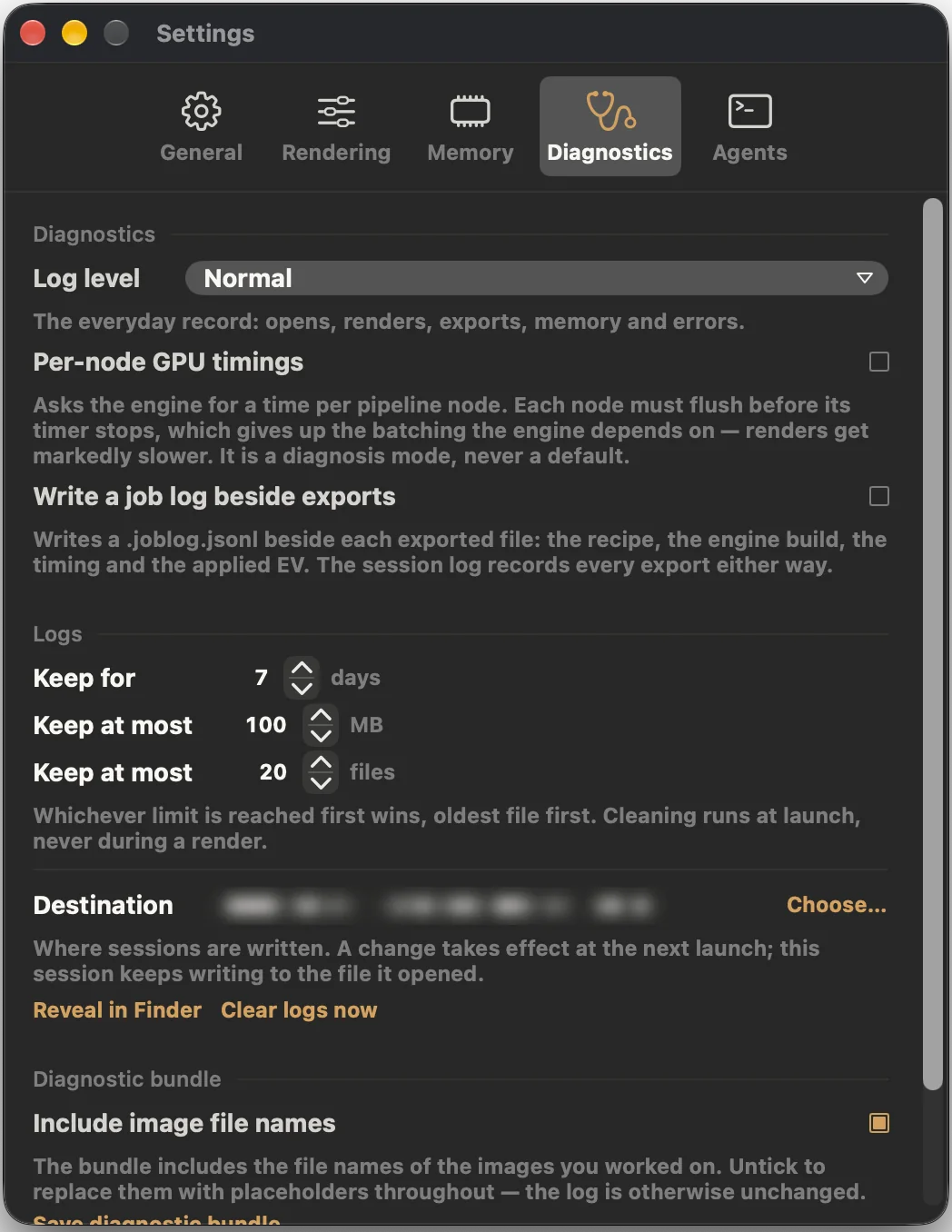
This diagnostic mode times pipeline nodes individually and disables batching, which makes rendering noticeably slower. Turn it off after collecting evidence.
When enabled, each export gets a .joblog.jsonl with recipe, engine version, timing and actual exposure. Leave it off for image-only delivery folders. Session logs still record exports.
Age, total size and file-count limits are applied at startup, oldest first, when any limit is reached. A changed log location takes effect on the next launch.
After reproducing the issue, choose Save Diagnostic Bundle… to write a zip with recent logs, version, machine information, current settings and the latest error. It is saved only to your chosen location and is not uploaded. Deselect Include Image Filenames if you do not want them included.
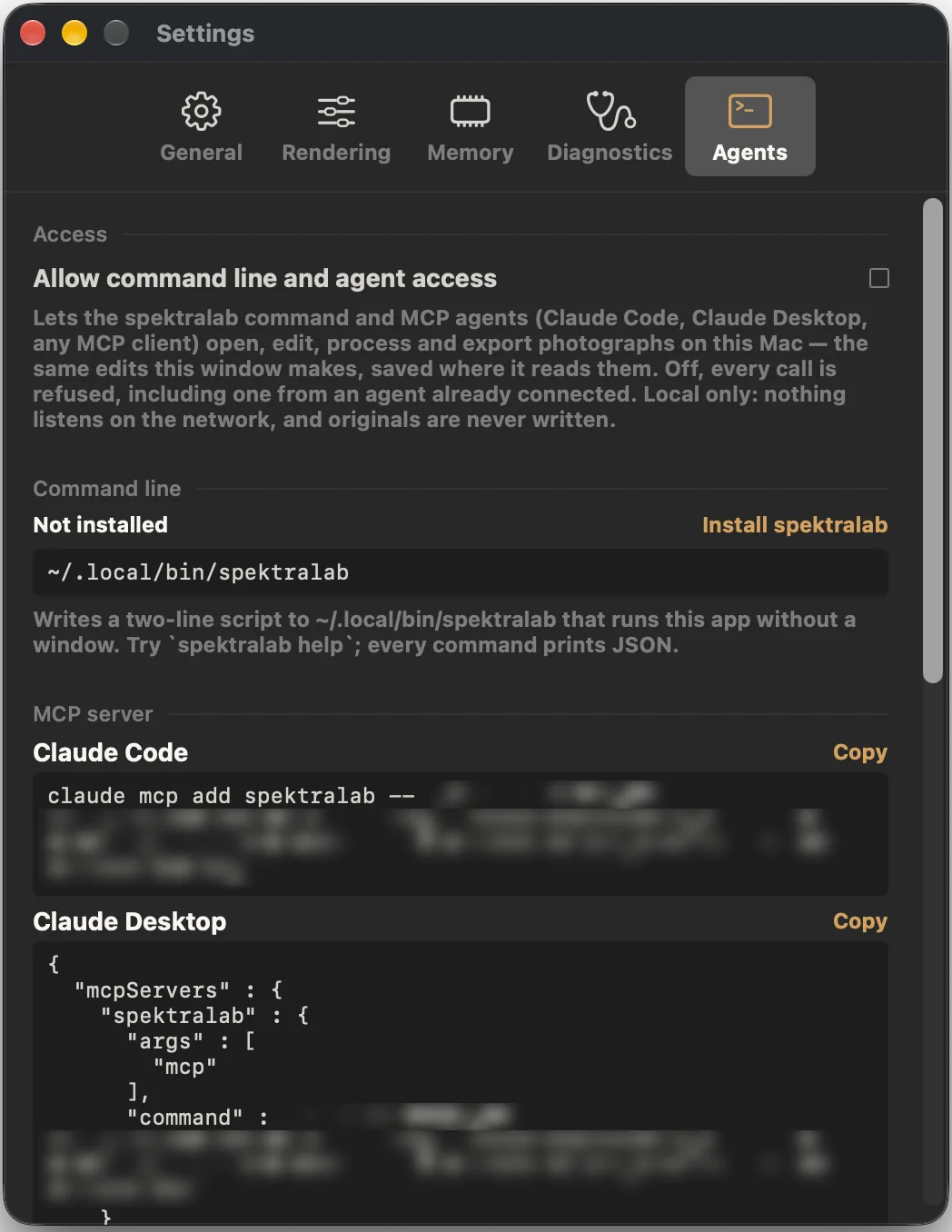
Access is off by default. Enable it to let the CLI and MCP clients open, edit, process and export through the same app implementation. Disabling access refuses all calls, including connected clients.
The app’s automation entry point is local and does not listen on the network. A third-party AI client has its own data handling.
Install spektralab writes a small launcher to ~/.local/bin/spektralab. If your shell cannot find it, run ~/.local/bin/spektralab help. Commands return JSON. Installing the launcher and enabling access are separate steps; do both.
Use the Copy button for your client in Settings → Agents → MCP Server. Install the app in Applications first. The configuration includes your app location, so copy it again after moving or reinstalling the app. Paths in old screenshots are redacted and should never be copied.
1.3.3 is signed and notarised. Follow the installation check and retain the complete error. The old guide’s Terminal command is no longer part of installation.
Check for preview. Stop editing and wait for full, then inspect at 100%. If it never finishes, note the format, camera model and actions and save diagnostics.
Process solves the current paper’s filter pack and resets Yellow / Magenta offsets. Process first, then add manual filtration. For brightness alone, try Post-Dev Exposure.
Check whether it is Digital Intermediate. DI is log and needs the viewing LUT. For ordinary files, check the export colour space and use a viewer that honours embedded profiles.
 SpektraLab